skipped.
A run tracks the execution of each step in the workflow, including its status and timing, along with any errors.
How it works
Each run has one of the following statuses:
In the API,
failed and skipped runs include a status_reason, so you can see why a run ended without retrieving it:
It’s
unknown when the step has no code. Runs with any other status don’t include the field.
Cancelled runs
Acancelled run was stopped on purpose, not by an error. Nothing needs fixing.
A run is cancelled when:
- Someone cancels it in the dashboard or with the Cancel Automation Run API.
- Someone stops the Automation with Stop now in the dashboard or with the Stop Automation API. This also cancels its
quota_exceededruns. Stop new runs lets runs in progress finish instead. - The Automation is disabled or deleted while the run is in progress. The run stops when it reaches its next step, so a run waiting in a Delay shows as
runninguntil the delay ends.
skipped.
Skipped runs
Askipped run ended on its own because it could no longer continue. It isn’t an error, and nothing needs fixing.
- The step where the run ended shows the reason, and the steps after it are
skipped. - Steps that already finished stay finished, and emails the run already sent aren’t recalled.
- A skipped run has already ended, so it can’t be cancelled.
When the contact is deleted:
- The run keeps going until it reaches a step that needs the contact, such as Send Email, Update Contact, or Add to Segment. It ends there.
- Delay and Wait for event steps don’t need the contact, so a run waiting in one shows as
runninguntil that step ends. - If none of the remaining steps need the contact, the run completes as usual.
Skipped steps
Each step in a run also has its own status, separate from the run’s status. A step can beskipped while the run keeps going.
A step is skipped when the contact unsubscribed, isn’t subscribed to the step’s Topic, or followed a different branch path. When a contact unsubscribes, any remaining Send Email steps in the Automation are skipped. A Send Email step with a Topic is also skipped when the contact isn’t subscribed to that Topic. Other step types, such as Delay, Condition, or Update Contact, still run as usual.
Listing runs
- Using the dashboard
- Using the API
Navigate to the Automations page and select an Automation to view its runs.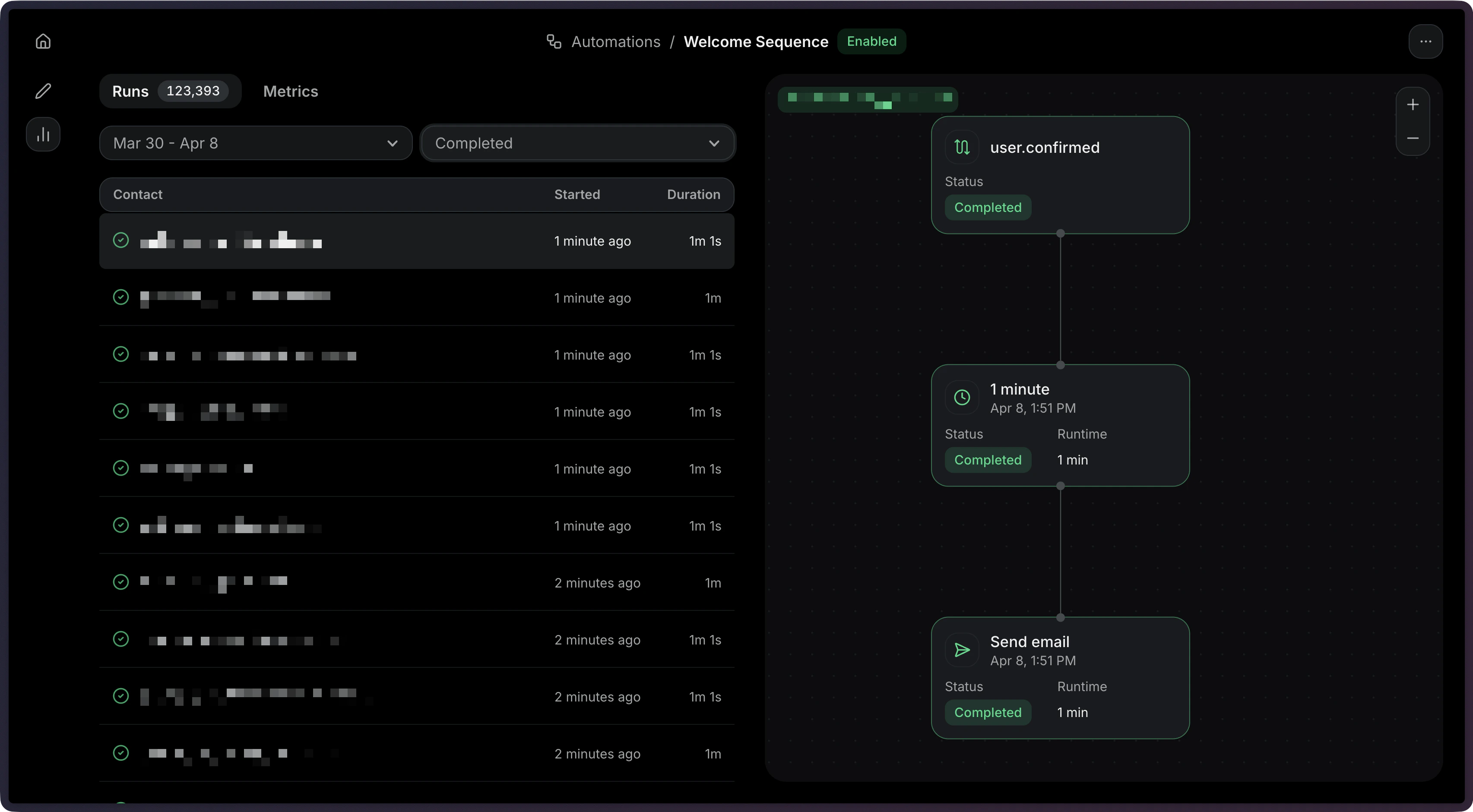
- Status — Whether the run is
running,completed,failed,cancelled,quota_exceeded, orskipped. - Started — When the run began.
- Duration — When the run finished (if applicable).
Filtering runs by status
- Using the dashboard
- Using the API
You can filter runs by status to find specific executions.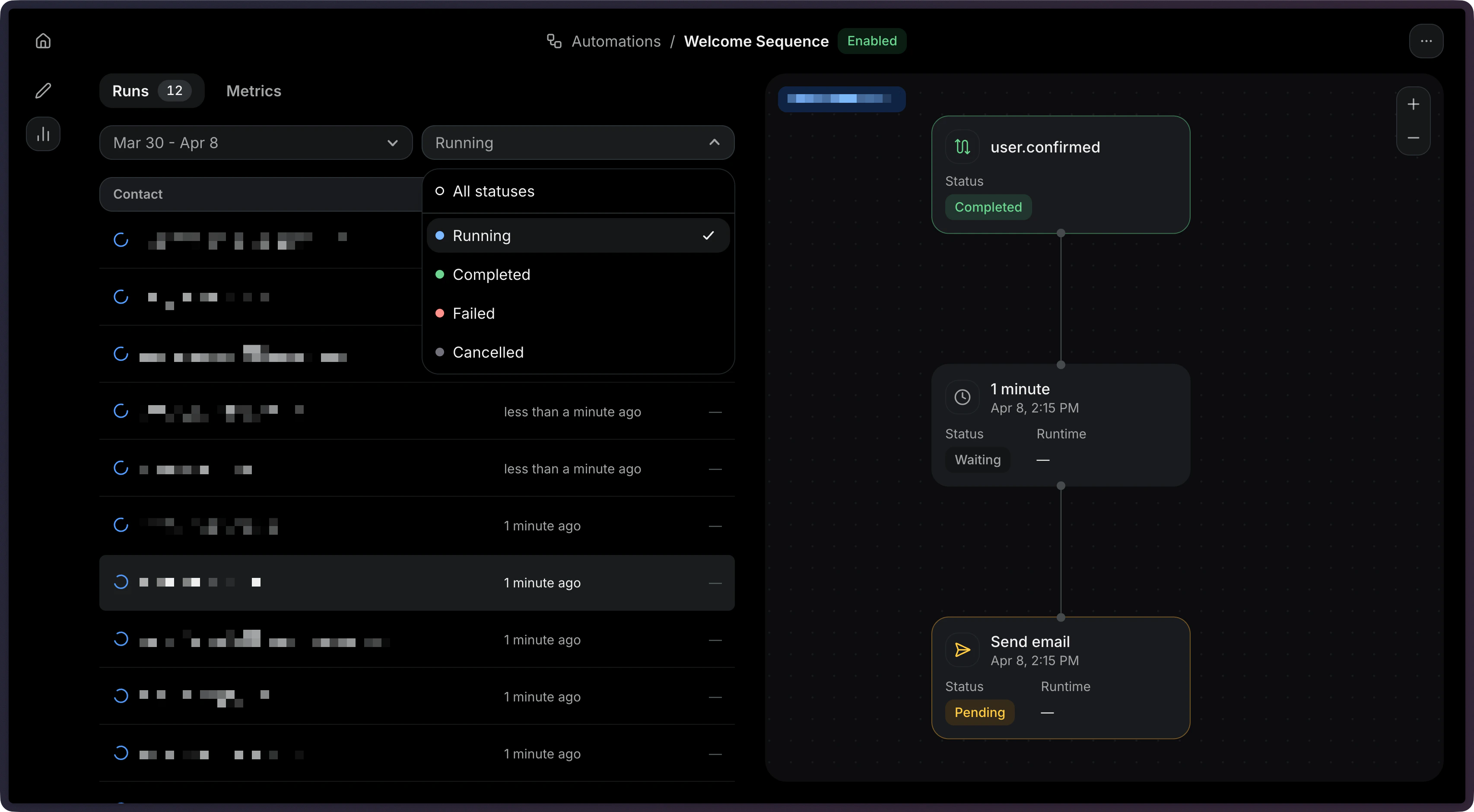
Viewing a single run
- Using the dashboard
- Using the API
Click on a run to view its details, and select the step you want to debug.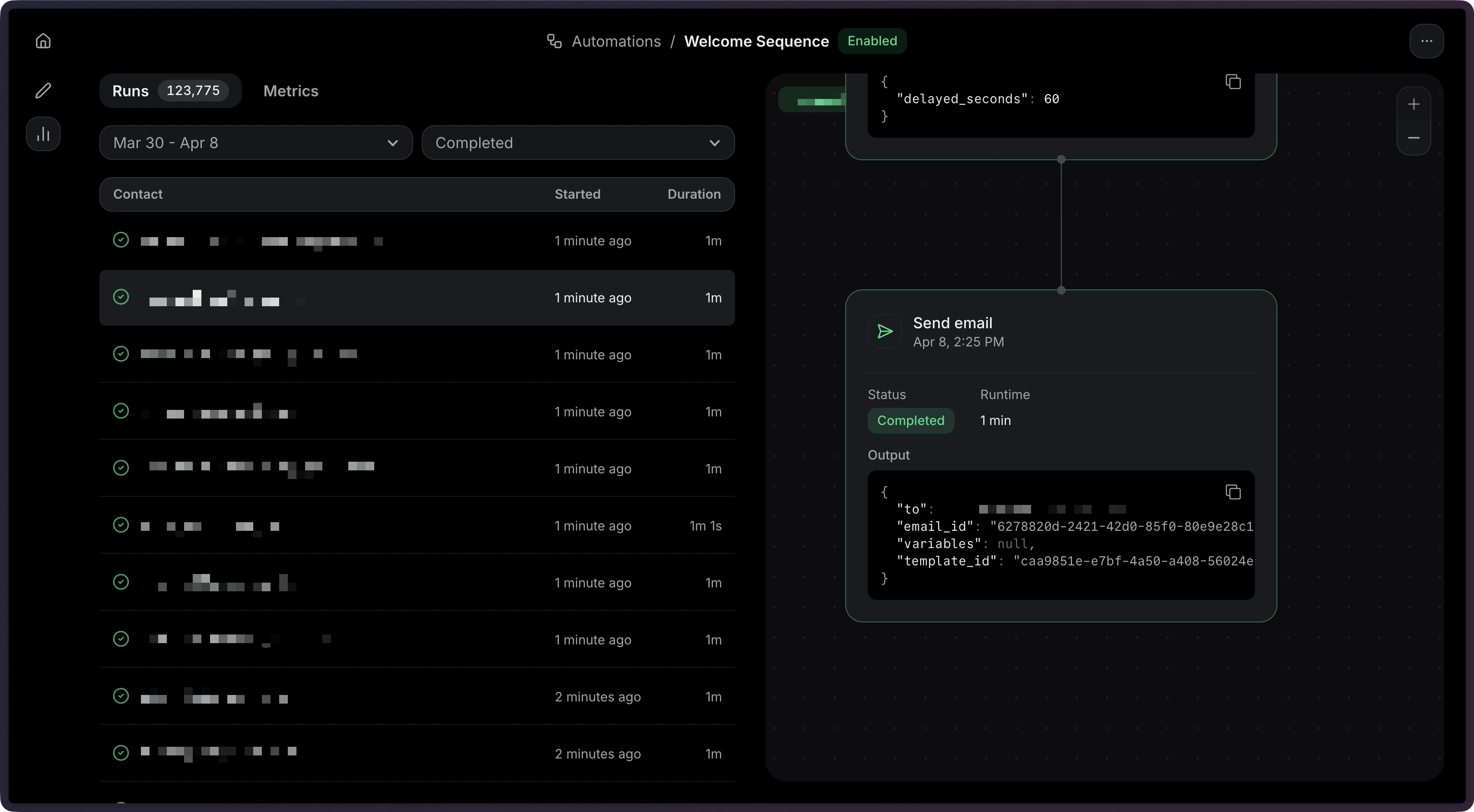
Debugging failed runs
- Using the dashboard
- Using the API
Go to the Runs tab and click on a run to view the details.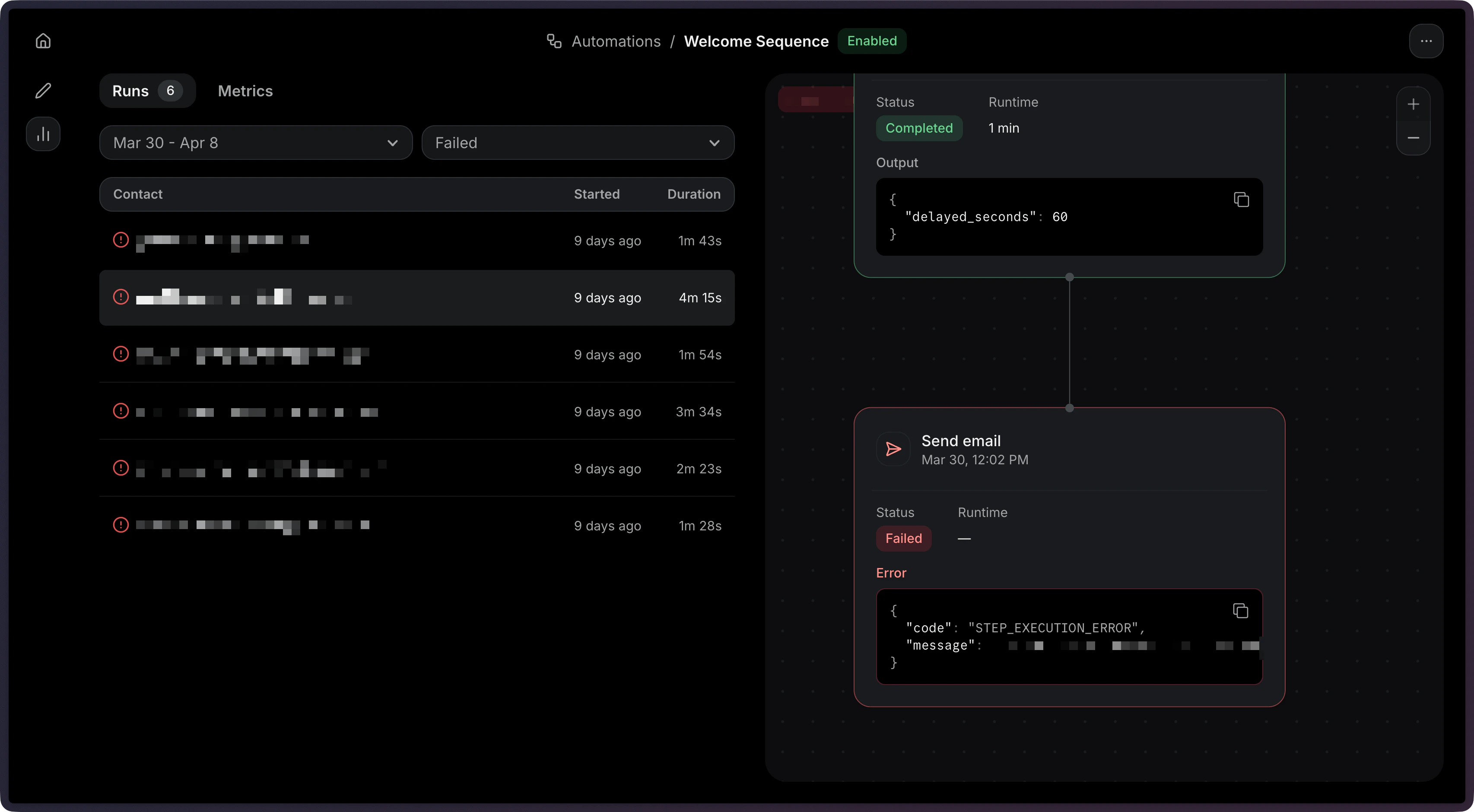
- List failed runs: Filter runs by
status=failedto find problematic executions. Each one has astatus_reasonwith the error code of the step that failed. - Retrieve the run: Get the full run details including the
stepsarray. - Find the failed step: Look for the step with a
failedstatus. - Check the error: The
errorfield on the failed step contains details about what went wrong.
- Condition error: A referenced field may not exist in the event payload. See Condition for how conditions are evaluated.
- Wait for event timeout: The expected event was not received within the timeout window.
- Send email failed: The template may not be published, or the sender address may not be verified.
Cancelling a run
Cancel a single run to skip its remaining steps, for example when the same event triggered a duplicate run. Emails the run already sent are not affected, and the Automation stays enabled. Only arunning or quota_exceeded run can be cancelled, and the dashboard cancels running runs only. A run that’s completed, failed, or skipped can’t be cancelled.
- Using the dashboard
- Using the API
In the runs list, click the Run actions button on a
running run and select Cancel run. Type CANCEL to confirm.Stopping an Automation
- Using the dashboard
- Using the API
Click on the Stop button to stop an Automation.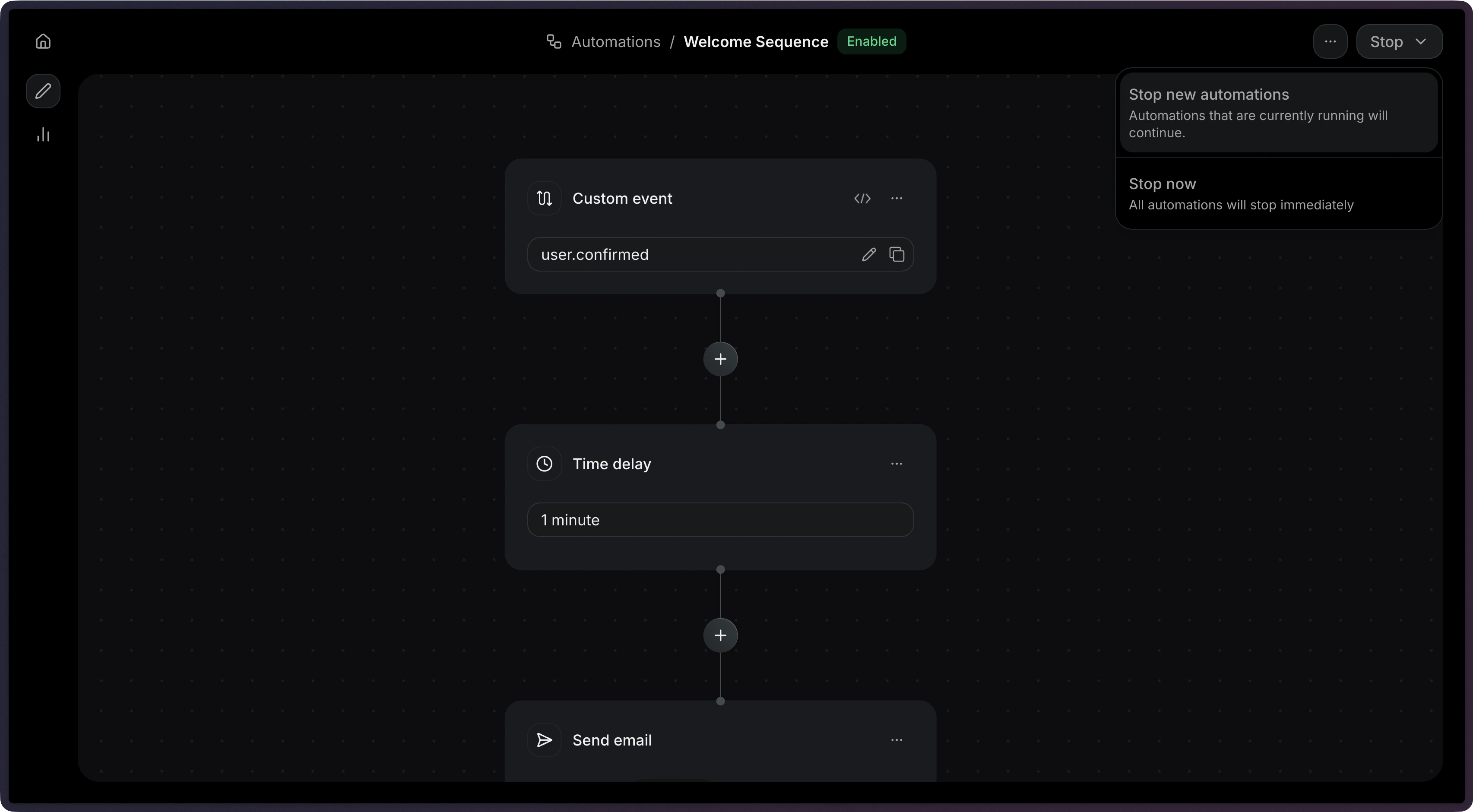
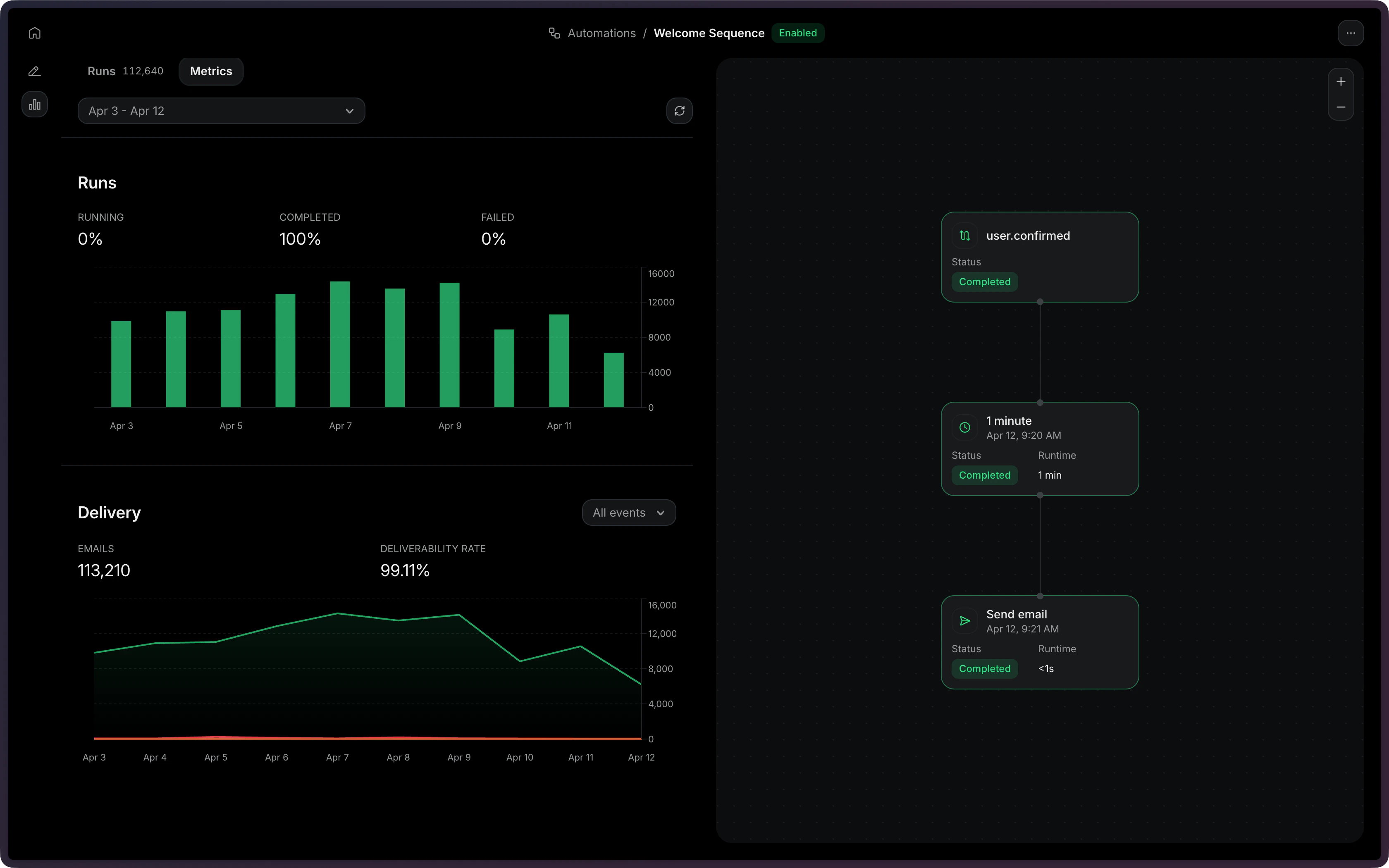
Viewing Metrics
In the dashboard, you can view overall metrics for any Automation. In the Observability panel for any Automation, select Metrics.